How to Create Vector Art in Adobe Illustrator is an essential guide for both aspiring and experienced designers looking to enhance their skills in graphic design. Vector art, characterized by its scalability and precision, plays a crucial role in modern design, offering numerous advantages over traditional raster graphics. From logos to intricate illustrations, vector graphics are widely utilized across various applications, making proficiency in Adobe Illustrator a valuable asset in the creative industry.
This guide will walk you through the fundamental steps to master vector art creation, starting with the installation of Adobe Illustrator and an overview of its user-friendly interface. You will explore the process of crafting basic shapes, working with colors and gradients, and utilizing the pen tool for custom designs, ensuring you develop a strong foundation in this versatile software.
Introduction to Vector Art

Vector art refers to graphics that are created using mathematical equations, which allows them to be resized without any loss of quality. This capability is crucial in graphic design, where scalability, precision, and clarity are vital. Vector art is integral in various design fields, including branding, illustration, and digital marketing, due to its versatility and adaptability across different mediums.The advantages of vector graphics over raster graphics are significant.
Unlike raster graphics, which are made up of pixels and can lose quality when enlarged, vector graphics maintain their sharpness and clarity no matter the size. This makes them highly suitable for logos, illustrations, and any design that requires resizing. Additionally, vector files typically have smaller file sizes, facilitating easier storage and quicker loading times for web applications. Other benefits include the ability to edit individual elements without affecting the entire image, and their compatibility with various design software, which enhances workflow efficiency.
Applications of Vector Art
Vector art is widely used in numerous applications across different industries. The following list highlights some of the most common uses, showcasing the diversity and functionality of vector graphics:
- Logo Design: Brands utilize vector graphics for their logos to ensure they remain crisp and recognizable across different media, from business cards to billboards.
- Illustrations for Print Media: Magazines and books often employ vector illustrations to create clean and detailed images that enhance the visual appeal of the content.
- Web and User Interface Design: Websites and applications leverage vector graphics for icons and other design elements to maintain clarity on various screen sizes.
- Advertising: Vector art is commonly used in print and digital advertisements, allowing for high-quality imagery that can be adapted for multiple formats without losing integrity.
- Apparel Design: Designers of clothing often use vector graphics to create intricate designs that can easily be scaled for various garment sizes.
Vector art plays a crucial role in creating visually appealing and versatile designs that cater to the ever-evolving needs of modern graphic design. Its significance is evident across various sectors, demonstrating its importance in both artistic expression and commercial applications.
Getting Started with Adobe Illustrator
Adobe Illustrator is a powerful vector graphics editor that enables artists and designers to create stunning illustrations, logos, and complex artwork with precision. Understanding how to install and navigate the software is essential for maximizing its capabilities.The initial step to using Adobe Illustrator is to install the software on your computer. This process varies slightly depending on the operating system, whether you are using Windows or macOS.
Installation of Adobe Illustrator
To install Adobe Illustrator, follow these steps:
- Visit the official Adobe website and navigate to the Adobe Illustrator product page.
- Click on the “Free Trial” or “Buy Now” button, depending on your preference.
- Create an Adobe ID or log in with your existing one.
- Download the Creative Cloud app, which is required for all Adobe applications.
- Open the Creative Cloud app and locate Adobe Illustrator in the list of available applications.
- Click on the “Install” button next to Adobe Illustrator and wait for the installation to complete.
- Once installed, you can launch Adobe Illustrator directly from the Creative Cloud app or your applications folder.
Main Interface and Tools
Upon launching Adobe Illustrator, you will be greeted by its main interface, which is designed for efficient workflow. Understanding the layout and tools available will greatly enhance your productivity.The primary components of the interface include:
- Menu Bar: Located at the top, it contains file options, editing functions, and various tools.
- Toolbox: Usually positioned on the left side, it provides quick access to drawing, selection, and editing tools.
- Control Panel: Found just below the menu bar, it offers context-sensitive options based on the selected tool.
- Artboard: The central area where all your artwork is created and manipulated.
- Panels: On the right side, panels like Layers, Color, and Properties allow for detailed adjustments and management of your artwork.
Essential Shortcuts to Improve Workflow
Utilizing keyboard shortcuts in Adobe Illustrator can significantly enhance your efficiency and streamline your design process. Familiarizing yourself with these shortcuts will help you navigate the program more effectively.Here are some essential shortcuts:
- Selection Tool: V
- Direct Selection Tool: A
- Pen Tool: P
- Rectangle Tool: M
- Zoom In: Ctrl + + (Windows) / Command + + (Mac)
- Zoom Out: Ctrl +
-(Windows) / Command +
-(Mac) - Group: Ctrl + G (Windows) / Command + G (Mac)
- Ungroup: Ctrl + Shift + G (Windows) / Command + Shift + G (Mac)
- Save: Ctrl + S (Windows) / Command + S (Mac)
- Undo: Ctrl + Z (Windows) / Command + Z (Mac)
Understanding and utilizing these shortcuts will lead to a more productive environment, allowing you to focus on creativity rather than navigation.
Creating Basic Shapes
Creating basic shapes is fundamental in vector art and serves as the building blocks for more complex designs. Adobe Illustrator provides a variety of shape tools that allow artists and designers to create geometric forms effortlessly. Understanding how to use these tools effectively can enhance your design process significantly.The process of creating basic shapes in Illustrator involves using the shape tools located in the toolbar.
Users can access tools for rectangles, ellipses, polygons, and stars. Each shape can be customized using various options available in the control panel, allowing for precise modifications in terms of dimensions, angles, and proportions.
Using Shape Tools
The shape tools are essential for creating the foundation of your artwork. To maximize their potential, it is important to understand how to utilize each tool effectively.
Rectangle Tool
Click and drag on the artboard to create a rectangle. By holding the Shift key while dragging, you can create a perfect square.
Ellipse Tool
Similar to the rectangle tool, click and drag to create an ellipse. Holding the Shift key will produce a perfect circle.
Polygon Tool
Click and drag to create a polygon, and you can specify the number of sides in the dialog box that appears.
Star Tool
Click and drag to create a star shape, adjusting the number of points and the inner radius in the dialog box.These tools provide a quick way to generate basic shapes, which can serve as the starting point for more intricate designs.
Combining Shapes
Combining shapes is a crucial technique for creating complex designs from simpler forms. Illustrator offers several methods to merge and manipulate these shapes effectively.The Pathfinder Panel is a powerful tool that enables users to combine multiple shapes into a single cohesive design. By selecting two or more shapes and choosing an option from the Pathfinder panel, users can achieve various results:
Unite
Merges selected shapes into one.
Subtract
Removes the top shape from the bottom shape.
Intersect
Keeps only the overlapping area of the selected shapes.
Exclude
Creates a shape that is the union of the selected shapes minus the overlapping parts.Combining shapes not only enhances the design but also simplifies the editing process, as you can treat the combined shape as a single object.
Modifying Shapes
Once you have created and combined basic shapes, modifying them is essential to achieving the desired aesthetic. Adobe Illustrator offers various tools that allow for the transformation of shapes, including scaling, rotating, and skewing.
Scaling
To resize a shape, select it and drag one of the corner handles while holding the Shift key to maintain proportions. Alternatively, you can access the Transform panel for precise adjustments.
Rotating
To rotate a shape, select it and move the cursor near one of the corner handles until you see a curved arrow. Click and drag to rotate the shape to the desired angle. For precise rotation, use the Transform panel.
Skewing
Skewing a shape alters its angles. To skew, select the shape, then go to the Object menu, select Transform, and choose Shear. Enter the desired angle to achieve the skew effect.These modification techniques allow for greater creativity and flexibility in your designs, enabling you to adapt basic shapes into unique artworks.
Working with Colors and Gradients
In the realm of vector art, color selection and gradient application are crucial components that significantly enhance the visual appeal of designs. Understanding how to effectively use colors and gradients in Adobe Illustrator can elevate your artwork, providing depth, interest, and coherence.Selecting and applying colors in Adobe Illustrator is intuitive thanks to its comprehensive color tools. Designers can choose from a variety of options such as the Color Picker, Swatches panel, and Color Guide.
The Color Picker allows users to select colors visually or input specific color values (RGB, CMYK, or HEX). The Swatches panel provides predefined colors and allows users to save custom colors for consistent use across their projects.
Creating and Editing Gradients
Gradients play an essential role in adding depth and dimension to vector graphics. Adobe Illustrator offers a robust gradient tool that allows designers to create smooth color transitions. To create a gradient, follow these steps:
- Select the object you wish to apply the gradient to.
- Open the Gradient panel from the Window menu.
- Click on the gradient bar to apply a default gradient, or create a custom one by adjusting the gradient stops.
- To edit the gradient, drag the color stops on the gradient bar to change their position or double-click on them to modify their colors.
- Use the Gradient Tool (G) to adjust the direction and length of the gradient on the object directly.
In addition to linear gradients, radial gradients can be created by selecting the Radial Gradient option in the Gradient panel. This allows for a color transition that radiates outward from a central point, creating a sensation of depth and dimension.When it comes to color schemes that work effectively in vector art design, understanding complementary, analogous, and triadic color schemes is beneficial.
Below are examples of each:
- Complementary Color Scheme: This scheme uses colors that are opposite each other on the color wheel, such as blue and orange, providing high contrast and visual interest.
- Analogous Color Scheme: This scheme involves colors that are next to each other on the color wheel, such as green, blue, and teal, creating a harmonious and pleasing effect.
- Triadic Color Scheme: This scheme comprises three colors that are evenly spaced around the color wheel, such as red, yellow, and blue, resulting in a vibrant and balanced composition.
Utilizing these color schemes effectively in combination with gradients can lead to striking results in vector art designs, making the artwork more engaging to the audience.
Using the Pen Tool
The Pen Tool is an essential feature in Adobe Illustrator that enables artists and designers to create intricate and customizable shapes with remarkable precision. Mastering this tool is crucial for anyone looking to elevate their vector art skills, as it provides the foundation for detailed illustrations and complex designs.Understanding the significance of the Pen Tool lies in its ability to create paths, which are defined by anchor points and control handles.
This functionality not only allows for the creation of straight lines but also lends itself to the crafting of intricate curves and custom shapes. By leveraging the Pen Tool, designers can achieve a level of detail and accuracy that is often unattainable through other drawing methods.
Techniques for Mastering the Pen Tool
To effectively utilize the Pen Tool, several techniques can be implemented to enhance precision and streamline the drawing process. These techniques include:
1. Controlling Anchor Points
Anchor points are the foundation of any path. Users can place them at strategic locations to define the shape Artikel. To add an anchor point, simply click on the desired location along the path. To remove an anchor point, click on the existing one while holding the Alt key.
2. Utilizing Control Handles
Control handles dictate the curvature of the path segments. By clicking and dragging an anchor point, users can manipulate the handles to create smooth curves. Aligning the handles symmetrically on both sides of an anchor point allows for a balanced curve.
3. Drawing Straight Lines and Curves
To create straight lines, click to place anchor points at each end. For curves, click to place the initial anchor, then click and drag to place subsequent anchors, using the control handles for adjustments.
4. Creating Complex Shapes
Combine both straight and curved segments to craft intricate designs. Start with a simple Artikel and gradually build upon it by adding more anchor points and adjusting the curves.
5. Practice with the Pen Tool
Regular practice is essential to gain confidence and proficiency. Try tracing over existing images or create geometrical shapes to become familiar with the tool’s capabilities.
“The Pen Tool is not just a tool; it is a pathway to creativity and precision.”
By incorporating these techniques into your workflow, you can unlock the full potential of the Pen Tool in Adobe Illustrator, allowing for the creation of bespoke vector artwork that stands out in quality and detail.
Adding Text to Vector Art
Incorporating text into vector art is an essential step in enhancing your designs and conveying messages effectively. Text can add a layer of meaning to your artwork, guiding viewers and creating a stronger connection with your vision. This section will explore various methods for adding text, converting it for customization, and selecting the right fonts that harmonize with your vector designs.
Methods for Incorporating Text into Vector Designs
Adobe Illustrator offers several methods to add text to your vector art, each suited for different design needs.
- Text Tool: The most direct method is using the Type Tool (T), which allows you to click anywhere on your canvas and start typing. You can adjust the font, size, and alignment in the Character panel.
- Area Type Tool: For blocks of text that need to fit within specific shapes, the Area Type Tool allows text to flow within a defined boundary, creating visually appealing compositions.
- Type on a Path: This method enables you to create text that follows the contour of a path or shape, adding dynamism to your design. You can achieve this by selecting the desired path and using the Type on a Path Tool.
Converting Text to Shapes for Customization
Transforming text into vector shapes allows for greater flexibility in design customization. Once text is converted, it becomes a shape that can be manipulated like other vector objects.To convert text into shapes, follow these steps:
- Select the text you wish to convert.
- Navigate to the menu and choose Type → Create Artikels. This action changes the selected text into vector paths.
- After conversion, you can edit individual anchor points using the Direct Selection Tool (A), allowing for unique adjustments to the typography.
Converting text to Artikels enables complete design control, allowing for custom alterations and integrations into your artwork.
Choosing Complementary Fonts for Vector Art Styles
Selecting the right font is crucial in ensuring that it complements your vector art style and enhances the overall aesthetic. Here are some tips for making informed font choices:
- Match the Theme: Consider the theme of your artwork. For a playful design, opt for rounded and informal fonts, while sleek and modern fonts work well for minimalist designs.
- Limit Font Styles: Using too many different fonts can create visual clutter. Aim for a maximum of two or three complementary fonts to maintain harmony.
- Readability: Ensure that the font is easily readable at various sizes. Complex or overly decorative fonts might look appealing but can hinder message clarity.
- Test Combinations: Experiment with different font combinations, adjusting size and spacing to find the best mix that enhances the visual flow of your design.
Applying Effects and Styles
Applying effects and styles in Adobe Illustrator is essential for enhancing vector art, providing depth, and creating a more visually appealing design. Whether you want to add subtle shadows, create a glowing effect, or apply unique textures to your shapes, Illustrator offers a suite of tools that can transform your designs dramatically.Illustrator features a variety of effects that can be applied to shapes, text, and images.
These effects include drop shadows, blurs, glows, and textures, which can elevate the overall aesthetic of your vector artwork. In addition, utilizing the Appearance panel and Graphic Styles can streamline the design process, allowing for consistency and efficiency.
Popular Effects in Adobe Illustrator
Understanding and utilizing popular effects can significantly enhance the visual appeal of your vector art. The following list highlights some of the most commonly used effects:
- Drop Shadow: This effect adds depth by creating a shadow behind an object, making it appear elevated from the background.
- Gaussian Blur: A smooth blur effect that softens edges, creating a sense of depth and distance.
- Inner Glow: Produces a soft glow within the edges of an object, adding a subtle light effect that can enhance the design.
- Outer Glow: Similar to inner glow but applied to the outside edges, giving a luminescent appearance to the object.
- 3D Effects: These effects can simulate three-dimensional depth by projecting objects into space, providing a dynamic feel to the artwork.
- Texturize: Applying textures can give a tactile feel to your vector art, making it more engaging and visually interesting.
- Color Overlay: This allows you to apply a color over the entire object, which can unify a color scheme or create a dramatic effect.
In addition to individual effects, the Appearance panel is crucial for managing multiple effects on a single object. It allows you to stack effects, alter their order, and adjust settings without permanent changes, fostering creative experimentation. The Graphic Styles option presents a library of pre-defined styles that can be applied with a single click. These styles can include multiple effects, such as fills, strokes, and effects, saving time and ensuring design consistency across projects.
“Effects in Illustrator not only enhance the visual appeal but also contribute to the storytelling aspect of your artwork.”
Utilizing these tools and techniques effectively can lead to impressive and professional results in your vector art creations.
Exporting Vector Art
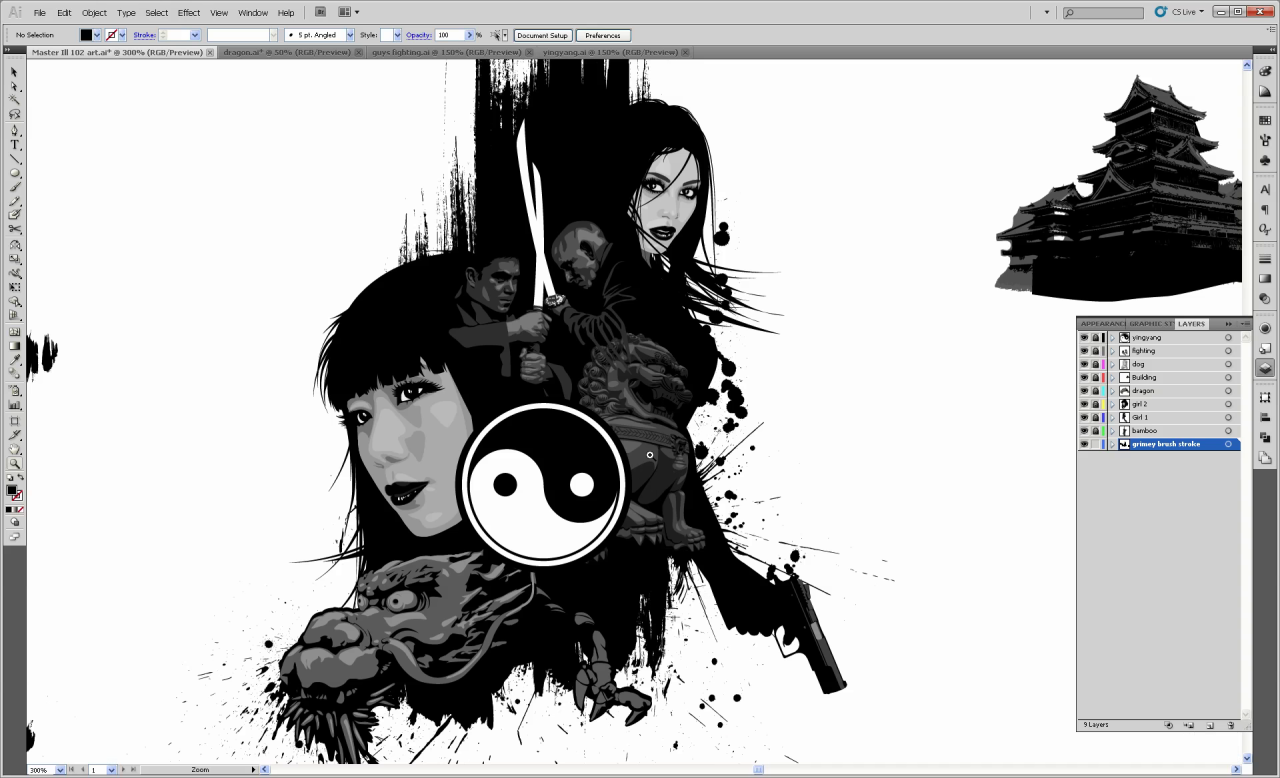
Exporting vector art is a crucial step in ensuring that your designs are preserved in the desired format and quality for various applications, whether for print or web use. Understanding the exporting process will enhance your workflow and help you maintain the integrity of your designs across different platforms.When it comes to exporting vector art from Adobe Illustrator, it is essential to know the various file formats available and their specific applications.
Each format serves distinct purposes, which can affect the scalability, quality, and compatibility of your artwork.
Exporting Steps and Formats
To export your vector art efficiently, follow these steps in Adobe Illustrator:
1. Select Your Artwork
Ensure your artwork is selected in the workspace.
2. Access the Export Menu
Navigate to `File` > `Export` > `Export As`.
3. Choose the File Format
In the dialog box, select the desired format from the dropdown menu.
4. Adjust Settings
Depending on the selected format, you may need to adjust additional settings (e.g., resolution for raster images).
5. Select the Destination
Choose the location where you want to save the file.
6. Click Export
Finalize the process by clicking the Export button.The following Artikels the key formats commonly used for exporting vector art:
- SVG (Scalable Vector Graphics): Ideal for web use due to its scalability and small file size. SVG files maintain the quality of images and are compatible with most modern web browsers.
- AI (Adobe Illustrator File): The native format for Illustrator, retaining all layers, effects, and editable properties. This format is best for sharing files with other Illustrator users.
- EPS (Encapsulated PostScript): Widely used for print media, especially in professional printing workflows. EPS files are compatible with various graphic design software, allowing for easy editing and resizing.
When optimizing vector artwork for web and print, consider the following best practices to ensure the best results:
Always maintain an appropriate resolution for the target medium to avoid pixelation or loss of quality.
For web use, reduce file sizes by simplifying paths and avoiding excessive detail. For print, ensure that color profiles are set correctly (such as CMYK for printing) to achieve accurate color reproduction.In sum, understanding the various exporting options and best practices will enable you to efficiently share your vector artwork while preserving its integrity and quality across different platforms.
Resources for Learning and Inspiration

As you embark on your journey to mastering vector art in Adobe Illustrator, it is important to have access to various resources that can enhance your skills and inspire creativity. The digital landscape offers a wealth of tutorials, communities, and examples from renowned artists that can provide guidance and motivation as you develop your craft.Online resources play a critical role in learning and honing your skills in Adobe Illustrator.
Numerous platforms offer structured courses, tutorials, and tips from industry professionals. Below are some platforms that are highly regarded for their educational content:
Online Learning Platforms
The following resources provide comprehensive tutorials and courses tailored to different skill levels, from beginners to advanced users:
- Adobe Help Center: The official Adobe website offers a plethora of tutorials and guides that cover all features of Illustrator in detail.
- Skillshare: This platform features a variety of courses specifically focused on vector art, allowing you to learn at your own pace.
- Udemy: With user-generated courses, Udemy offers numerous Illustrator classes that range from basic to advanced techniques.
- YouTube: A treasure trove of free tutorials, channels such as “Satori Graphics” and “Envato Tuts+” provide high-quality instructional videos for learning Illustrator.
- LinkedIn Learning: This platform provides a range of video courses on Illustrator, often taught by industry experts.
In addition to formal tutorials, engaging with artistic communities can provide valuable feedback and networking opportunities. Being part of a community allows artists to share their work and gain insights from peers and mentors.
Communities and Forums
Participating in online forums and communities is beneficial for both skill advancement and networking. Below are some prominent platforms where artists can connect, share, and receive constructive criticism:
- Behance: This platform allows artists to showcase their portfolio, receive feedback, and explore the works of others in the creative community.
- Dribbble: A platform designed for creative professionals to share their projects, Dribbble is excellent for getting inspiration and feedback from peers.
- Reddit: Subreddits such as r/AdobeIllustrator and r/vectorart are great for sharing artwork, asking for feedback, and finding tips from other users.
- DeviantArt: An established community where artists can display their work, DeviantArt offers forums for discussions and collaborations.
Looking at the works of established vector artists can also provide inspiration and insight into techniques and styles that resonate with your personal artistic vision.
Notable Vector Artists
Familiarizing yourself with the creations of famous vector artists can ignite your creativity and help you understand various approaches to vector art. Here are a few well-known artists and their significant contributions:
- Olly Moss: Renowned for his minimalistic poster designs, Moss combines vector techniques with clever visual storytelling.
- Jessica Walsh: A leading designer, Walsh’s vibrant and playful vector art often incorporates bold colors and intricate patterns.
- Beeple: Known for his groundbreaking digital art, Beeple’s daily projects demonstrate the power of vector graphics in modern digital culture.
- Yuko Shimizu: A celebrated illustrator, Shimizu’s work features intricate details and a unique style that blends traditional and digital techniques.
Engaging with these resources, communities, and artists will provide a solid foundation for your growth in vector art, ensuring that you continuously find inspiration and remain connected to the creative world around you.
Closing Notes
In conclusion, mastering how to create vector art in Adobe Illustrator opens up a world of creativity and professional opportunities. By understanding essential techniques such as shape creation, color application, and text integration, you can produce stunning visuals that stand out in any project. With continuous practice and exploration of additional resources, you will enhance your skills and gain inspiration from the vibrant community of vector artists, allowing you to contribute your unique voice to the ever-evolving landscape of graphic design.