Delving into How to Calibrate Your Monitor for Accurate Colors reveals the vital role of calibration in achieving true-to-life visuals. Accurate color representation is essential for creative professionals and everyday users alike, as a miscalibrated monitor can lead to poor decision-making in design, photography, and video editing. This process involves understanding both hardware and software calibration methods, which can significantly enhance your viewing experience and ensure that what you see on screen closely matches reality.
In this guide, we will explore the essential tools required for effective calibration, Artikel the step-by-step calibration process, and provide insights into adjusting color settings for optimal results. Furthermore, we will examine how environmental factors can influence your calibration efforts, ensuring that you create the best possible conditions for your work.
Understanding Monitor Calibration
Monitor calibration is a critical process that ensures your display outputs the most accurate colors possible. In fields such as photography, graphic design, and video editing, precise color representation is essential for achieving professional results. Without proper calibration, monitors may display colors inaccurately, leading to issues in productivity and the quality of work produced. Calibration addresses common problems such as color distortion, contrast imbalance, and brightness inconsistency.
Many users may experience a monitor that appears too warm or too cool, which can misrepresent the intended hues of images and videos. Furthermore, the lack of calibration can result in different displays showing the same image in varying colors, complicating collaborative projects and final outputs.
Calibration Methods
Monitor calibration can be achieved through two primary methods: hardware calibration and software calibration. Each method has distinct characteristics that cater to different user needs and circumstances.
- Hardware Calibration: This approach involves using built-in calibration tools or external devices, such as colorimeters, that measure the monitor’s output and adjust it accordingly. Hardware calibration tends to yield more accurate results, as it can directly manipulate the monitor’s settings to achieve optimal color accuracy. For instance, professionals often utilize devices like the X-Rite i1Display or Datacolor Spyder to achieve precise results.
- Software Calibration: Software calibration relies on software applications to adjust the display settings based on predefined color profiles. While easier to implement, it may not provide the same level of accuracy as hardware calibration. Users can employ tools like Windows Color Calibration or macOS Display Calibrator Assistant to create and manage color profiles, but these profiles are based on assumptions about the display’s capabilities and may not account for all hardware variations.
When selecting between these methods, it is important to consider the intended use of the monitor. Professional users, such as photographers and graphic designers, generally prefer hardware calibration for its superior accuracy, while casual users may find software calibration sufficient for their needs.
“Calibration is not just about adjusting brightness or contrast; it’s about ensuring that the colors you see are the colors that actually exist.”
Tools Needed for Calibration
To achieve precise color accuracy on your monitor, having the right tools for calibration is essential. These tools not only facilitate the calibration process but also ensure that your display meets industry standards for color representation. Whether you are a professional photographer, graphic designer, or simply someone who values accurate visuals, understanding these tools will greatly enhance your calibration efforts.Various tools are available for monitor calibration, including calibration devices and software.
Calibration devices, commonly known as colorimeters or spectrophotometers, are hardware tools that measure the display’s output and adjust the colors accordingly. Calibration software works in conjunction with these devices to create profiles that adjust your monitor’s settings to achieve optimal color accuracy. Utilizing both types of tools will yield the best results in your calibration process.
Calibration Devices
Calibration devices are critical for accurately measuring and adjusting monitor colors. They can either be colorimeters or spectrophotometers, each with unique features that cater to different calibration needs. Below is a list of recommended calibration tools along with their features:
- SpyderX Pro: This colorimeter offers fast measurement times and an intuitive interface. Its advanced technology ensures accurate color representation for various display types.
- X-Rite i1Display Pro: Known for its versatility, this device features precise and reliable measurements. It supports a variety of display technologies and allows for customized calibration settings.
- Datacolor SpyderCHECKR: This tool is especially beneficial for photographers. It includes a color reference target that helps in achieving accurate colors across various lighting conditions.
Calibration Software
Calibration software plays an integral role in the calibration process by creating profiles that adjust your monitor’s settings based on the measurements obtained from calibration devices. Here are a few recommended calibration software options:
- DisplayCAL: A free and open-source software that offers comprehensive calibration features. It supports a wide range of devices and provides detailed reports on calibration results.
- CalMAN: This professional-grade software is widely used in the film and television industry. It offers extensive features for advanced calibration and is compatible with many calibration devices.
- LightSpace CMS: Offering an array of advanced color management tools, this software is ideal for users who require in-depth calibration capabilities for various display types.
Setting Up Calibration Tools
To ensure effective calibration, proper setup of both calibration devices and software is crucial. Here are the steps to follow:
1. Prepare your environment
Ensure that your room is well-lit with consistent lighting. Avoid direct sunlight on the monitor during calibration.
2. Install the calibration software
Download and install the calibration software of your choice on your computer.
3. Connect the calibration device
Attach the device to your monitor following the manufacturer’s instructions. Usually, this involves connecting via USB.
4. Launch the software
Open the calibration software and follow the on-screen prompts to begin the calibration process.
5. Follow the calibration process
The software will guide you through the steps, which typically include measuring the monitor’s output and adjusting settings accordingly.
6. Save the calibration profile
Once the calibration is complete, save the profile to ensure that your monitor maintains the accurate color settings.
“Proper calibration is not a one-time task; it is essential to periodically recalibrate your monitor to maintain color accuracy.”
Step-by-Step Calibration Process
Calibrating your monitor is a vital process for achieving accurate color representation, which is essential for photographers, graphic designers, and anyone who relies on visual fidelity. The calibration process can be performed using software tools or with the assistance of hardware calibrators. This section will provide a comprehensive guide on both methods, ensuring your monitor displays colors as intended.
General Steps to Calibrate a Monitor Using Software Tools
Using software tools for monitor calibration involves a series of defined steps that ensure your display settings are optimized for the best possible color output. To begin, follow these steps:
- Access the monitor’s built-in settings menu, usually done via physical buttons or on-screen display.
- Reset all settings to factory defaults to eliminate any previous adjustments.
- Launch the calibration software on your computer. Common options include DisplayCAL and CalMAN.
- Follow the on-screen instructions, which typically guide you through adjusting brightness, contrast, and gamma settings.
- Use the color calibration features to adjust the primary colors (red, green, blue) until accurate hues are achieved.
- Save the calibration profile created by the software, applying it to your monitor for consistent color display.
Following these steps allows you to adjust your monitor’s settings effectively without specialized equipment, although precision may vary.
Using Hardware Calibrators for Precise Adjustments
Hardware calibrators offer enhanced accuracy for monitor calibration by measuring light emitted from the screen and providing precise adjustments based on those readings. Utilizing a hardware calibrator involves a more detailed process, which is Artikeld below.Begin the calibration with the following checklist:
- Ensure your monitor is warmed up for at least 30 minutes prior to calibration for stable performance.
- Connect the hardware calibrator to your computer and position it on the screen according to the manufacturer’s guidelines.
- Install the calibrator’s software, which typically comes with the device, and launch it.
- Select the calibration settings suitable for your monitor type (LCD, OLED, etc.) and follow the prompts.
- Allow the software to take measurements; the calibrator will adjust various parameters automatically.
- Review the calibration results and make necessary manual adjustments if the software permits.
- Save the final calibration profile to your computer and apply it to your monitor settings.
The use of a hardware calibrator ensures that your monitor is adjusted to industry standards, providing a reliable reference for color-critical tasks.
Adjusting Color Settings
Successful monitor calibration necessitates careful adjustment of several key color settings. These adjustments ensure that the display accurately represents colors, which is vital for tasks such as photo editing, graphic design, and gaming. Fine-tuning brightness, contrast, gamma, and color temperature contributes significantly to achieving color accuracy and optimal visual performance.Brightness, contrast, and gamma are the foundational settings that need to be adjusted during calibration.
Brightness determines the overall luminance of the display, affecting how light or dark the images appear. Contrast defines the difference between the darkest and lightest parts of an image, influencing the depth and vibrancy of colors. Gamma controls the relationship between the input signal and the brightness of the output display, ensuring that mid-tones are represented accurately.
Key Color Settings for Calibration
When adjusting the color settings, it is essential to consider the following factors that contribute to the overall quality of the display:
- Brightness Settings: It is crucial to set the brightness to a level that is comfortable for your environment while ensuring that darker areas of images are not lost. A common starting point for brightness is around 120 cd/m² for general use, but this may need adjustment based on ambient lighting.
- Contrast Settings: An appropriate contrast setting enhances the visual appeal of images. A good value often ranges from 60 to 80 percent, depending on the monitor type, but should be adjusted to ensure that bright areas don’t wash out and dark areas maintain detail.
- Gamma Settings: The gamma value typically ranges from 1.8 to 2.2 for most monitors. A setting of 2.2 is ideal for most applications, ensuring that the colors appear natural and consistent.
- Color Temperature: Standard color temperatures for accurate color reproduction are 6500K (D65) for daylight and 5500K for standard viewing. A warmer temperature (lower K value) may be suitable for editing skin tones, while cooler temperatures (higher K value) are preferred for vibrant color work.
Color temperature significantly impacts the accuracy of colors displayed on a monitor. A cooler temperature can result in a bluish tint, while a warmer temperature can produce a yellowish hue. For most applications, a color temperature of around 6500K is ideal, aligning with the typical daylight spectrum, which helps in producing accurate colors for photography and design.
Ideal Settings for Different Monitor Types
Different types of monitors may require specific settings to achieve optimal color accuracy. Here are some examples:
- Gaming Monitors: A brightness setting between 150-250 cd/m² is often recommended, depending on the gaming environment. A contrast ratio of 70-80% enhances the vibrancy of colors, while a gamma setting of 2.2 helps ensure that shadows remain visible during gameplay. A color temperature around 6500K is suitable for immersive color experiences.
- Professional Editing Monitors: For photo and video editing, a brightness of 120-160 cd/m² is ideal. A higher contrast ratio closer to 80% provides depth in images, while a gamma value of 2.2 is crucial for maintaining consistent color representation. Setting the color temperature to 6500K is essential for true-to-life color reproduction.
- General Use Monitors: For everyday tasks, brightness settings around 120-150 cd/m² are suitable, with a contrast ratio of approximately 60-70%. A gamma setting of 2.2 ensures a balanced image display, while a color temperature of 6500K provides a comfortable viewing experience for text and graphics.
In summary, adjusting these key color settings plays a critical role in achieving accurate color reproduction on different types of monitors. Understanding the implications of brightness, contrast, gamma, and color temperature ensures that users can enjoy a visually pleasing and accurate display tailored to their needs.
Testing Calibration Accuracy
Ensuring that your monitor is calibrated correctly is essential for achieving accurate color representation. After completing the calibration process, it is critical to test the accuracy of your settings to confirm that your monitor displays colors as intended. This section discusses various methods to evaluate your calibration and provides guidance on interpreting the results.
Methods to Test Calibration Accuracy
Testing the accuracy of your calibration can be performed using a variety of methods. These methods allow you to evaluate how well your monitor reproduces colors compared to standard references. Here are some effective approaches to assess calibration accuracy:
- Utilizing Calibration Software: Specialized calibration software often includes built-in testing features that generate color patterns or reference images, enabling you to compare your monitor’s outputs directly against standard values.
- Using Color Test Images: Download standard color test images or charts, such as the Adobe RGB color palette, to visually inspect the accuracy of colors displayed on your monitor.
- Employing Colorimeter or Spectrophotometer: For the most precise evaluation, utilize hardware devices like a colorimeter or spectrophotometer that measure the actual output of your monitor and compare it to the desired color values.
Evaluating Test Images for Color Correctness
When using test images to evaluate color correctness, it is crucial to select images that cover a wide range of hues, saturation levels, and brightness. Test images can include gradients, color swatches, and real-world photographs. Here are some tips for effective evaluation:
- Choose High-Quality Images: Select images that are specifically designed for color evaluation. High-resolution images with clear, distinct colors will provide the most reliable feedback.
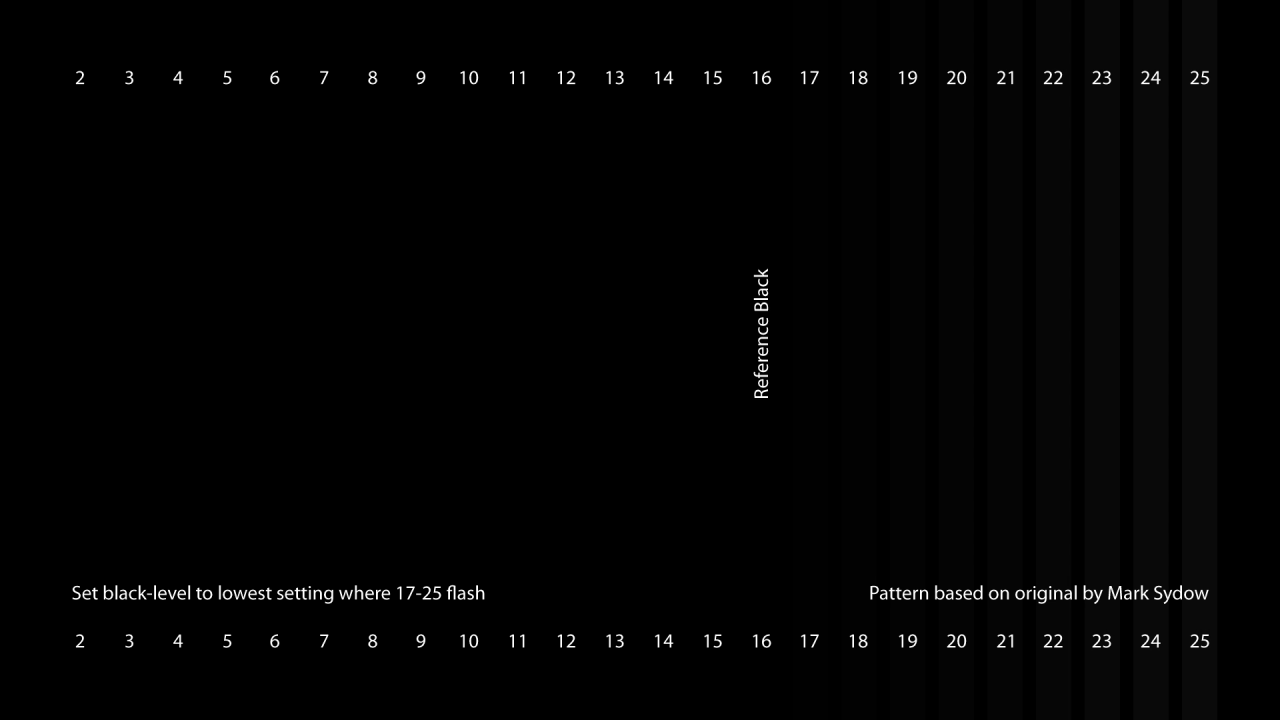
- Observe Color Transitions: Look for smooth transitions between colors in gradient images. Abrupt shifts or banding may indicate poor calibration.
- Check for Skin Tones: Test images featuring human skin tones can be particularly useful, as accurate reproduction of these colors is essential for photography and video editing.
Interpreting Calibration Test Results
Interpreting the results of your calibration tests is crucial for understanding how well your monitor is performing. Accurate interpretation helps identify whether further adjustments are necessary. Consider the following aspects when analyzing your results:
- Delta E Values: Delta E measures the difference between the actual color displayed and the reference color. A lower Delta E value (preferably below 2) indicates a more accurate color reproduction.
- Visual Inspection: Use your judgment in addition to numerical data. If colors appear vibrant and true to life, it is a good indication that your calibration is successful.
- Consistency Across Brightness Levels: Ensure that colors remain consistent across various brightness settings. If colors shift significantly at different brightness levels, further calibration may be required.
Maintaining Calibration
Regular maintenance of monitor calibration is essential for ensuring that the colors displayed on your screen remain true to life. Environmental factors and usage can lead to gradual shifts in color accuracy over time, making it crucial to periodically check and adjust your monitor’s settings. This not only enhances your viewing experience but also ensures that color-critical tasks, such as photo editing and graphic design, are performed with the highest level of precision.Establishing a routine maintenance schedule for your monitor’s calibration can greatly improve its longevity and reliability.
A consistent approach allows you to detect any deviations in color accuracy early and make adjustments as needed. The following schedule Artikels recommended times for routine checks and adjustments to maintain optimal calibration:
Routine Calibration Schedule
Performing regular checks and adjustments will help identify any signs of color drift. The suggested schedule includes:
- Monthly Checks: Perform a quick visual inspection of your monitor’s color accuracy and brightness every month to ensure there are no noticeable shifts.
- Quarterly Calibration: Use calibration tools to recalibrate your monitor every three months for consistent accuracy, especially if your work relies heavily on color precision.
- After Major Changes: Recalibrate after significant changes in your workspace, such as new lighting conditions or if the monitor has been moved or transported.
Common indicators can signal that a monitor requires recalibration. Recognizing these signs promptly can save time and enhance your productivity.
Signs Indicating Monitor Needs Recalibration
Awareness of the following symptoms can be crucial in maintaining color accuracy:
- Inconsistent Colors: If colors appear different from what is expected or compared to other devices, it may indicate a need for recalibration.
- Faded or Dull Shades: Colors may seem washed out or less vibrant, suggesting that your monitor’s settings have drifted over time.
- Color Casts: A noticeable tint, either warm or cool, across the screen can be a sign that the monitor is no longer accurately calibrated.
- Brightness Variability: If brightness levels vary significantly during use or seem inconsistent, recalibration might be necessary to restore uniformity.
Maintaining your monitor’s calibration is a proactive approach that significantly enhances both visual quality and productivity. By adhering to a structured schedule and recognizing signs that indicate recalibration is needed, you can ensure that your monitor continues to deliver accurate and vibrant colors for all your viewing needs.
Troubleshooting Calibration Issues
Calibration of monitors can sometimes present challenges that hinder achieving accurate color reproduction. Understanding common problems and their solutions can greatly enhance the calibration process, ensuring that the display meets the desired color accuracy standards. This section will focus on identifying prevalent calibration issues and provide practical solutions to overcome them.
Common Calibration Problems
Several issues may arise during the monitor calibration process that can lead to less than optimal results. Acknowledging these problems can facilitate better troubleshooting and adjustments. Below are some of the primary issues along with their solutions:
- Color Drift: Over time, monitors can experience color drift, where the display colors shift away from their calibrated state. This usually occurs due to aging components or temperature variations.
- Inconsistent Display: Fluctuations in brightness or color intensity can occur, particularly in multi-monitor setups, where uniformity across screens is essential for accurate color representation.
- Improper Lighting Conditions: Ambient lighting can significantly affect color perception. Calibration performed under varying lighting conditions may yield inaccurate results.
- Calibration Tool Misconfigurations: Using calibration tools incorrectly can lead to erroneous adjustments, resulting in skewed color output.
Solutions for Calibration Issues
Addressing the aforementioned common problems requires systematic approaches that can restore and enhance color accuracy. Below are effective solutions tailored for specific calibration issues:
- Correcting Color Drift: Regularly re-calibrating your monitor can help to correct color drift. Employ consistent temperature control in the environment to minimize changes in display performance.
- Ensuring Consistency Across Displays: Utilize matching monitors and calibrate them simultaneously to ensure uniformity. Calibration software that supports multi-display configurations can also assist in achieving consistency.
- Optimizing Lighting Conditions: Conduct calibration in a controlled environment with consistent lighting. Consider using blackout curtains or dedicated lighting sources to mitigate ambient light interference.
- Reconfiguring Calibration Tools: Double-check the settings and instructions of your calibration tool to ensure it is used correctly. Regular software updates may enhance functionality and accuracy.
Maximizing Calibration Effectiveness
Enhancing the effectiveness of monitor calibration extends beyond simple adjustments. Implementing best practices can ensure that the calibration maintains its integrity over time. The following tips can optimize the calibration process:
- Regular Maintenance: Perform routine checks and re-calibrations at specified intervals to maintain color accuracy.
- Use Quality Calibration Tools: Invest in high-quality calibration devices that provide precise adjustments and reliable results.
- Educate Yourself on Color Theory: Understanding color theory can aid in making informed adjustments and comprehending calibration tools’ feedback.
- Document Calibration Settings: Keeping a record of settings and adjustments can help identify patterns or persistent issues that require attention.
The Impact of Environment on Calibration
The calibration of a monitor is significantly influenced by the environment in which it is conducted. Ambient light conditions, the color temperature of light sources, and the overall setting play crucial roles in determining the accuracy of color representation on screens. Proper consideration of these factors can greatly enhance the effectiveness of the calibration process, leading to more precise and reliable results.Ambient light conditions directly affect how colors are perceived on a monitor.
Bright or fluctuating light sources can distort the viewer’s perception, resulting in inaccurate adjustments during calibration. It is essential to create a controlled environment that minimizes external influences. Ideal calibration settings should aim for consistent lighting without excessive glare or reflection on the monitor screen.
Best Practices for Creating the Ideal Calibration Environment
To achieve optimal calibration results, following specific practices is vital. A well-designed environment can help ensure that the calibration process is not compromised by external light sources or varying conditions. The following guidelines Artikel key aspects to consider when setting up a calibration space:
- Use a Room with Controlled Lighting: Select a room with minimal natural light, or close curtains and blinds to reduce the impact of sunlight.
- Employ Soft, Diffused Lighting: Utilize soft, diffused light sources that do not create harsh shadows or bright spots on the screen.
- Maintain Consistent Color Temperature: Use light sources that emit a neutral color temperature of around 6500K, which is commonly used as a standard reference for monitor calibration.
- Avoid Direct Light on the Screen: Position the monitor so that it is not directly facing windows or bright lamps, which can lead to reflections and glare.
Light Sources to Avoid During Calibration
Certain light sources can adversely affect the calibration process by introducing unwanted color casts or reflections. To ensure a successful calibration, it is essential to identify and avoid these types of lighting:
- Fluorescent Lights: These can emit a spectrum of light that may distort colors, leading to inaccuracies during calibration.
- Incandescent Bulbs: While they produce warm light, incandescent bulbs can create a yellowish tint that interferes with color accuracy.
- LEDs with Variable Color Temperatures: Some LED lights can shift in color temperature, making them unsuitable for a stable calibration environment.
- Natural Light: Sunlight varies throughout the day and can introduce unpredictable changes in color perception, making it difficult to achieve consistent calibration results.
Creating an optimal calibration environment is fundamental to achieving accurate color representation on your monitor. By carefully controlling ambient light conditions and being mindful of the light sources used during the calibration process, you can ensure that your monitor displays colors true to their intended appearance.
Outcome Summary
In conclusion, mastering how to calibrate your monitor for accurate colors not only improves your visual experience but also enhances your productivity and creativity. By following the Artikeld steps, utilizing the right tools, and maintaining your calibration regularly, you can ensure a consistently accurate display. As you embrace this process, you will not only take control of your visual environment but also gain confidence in your work, knowing that the colors you see are precise and reliable.